A friendly graphical front-end for the Windows diskpart tool — inspect and manage disks, partitions, and volumes without memorizing commands.




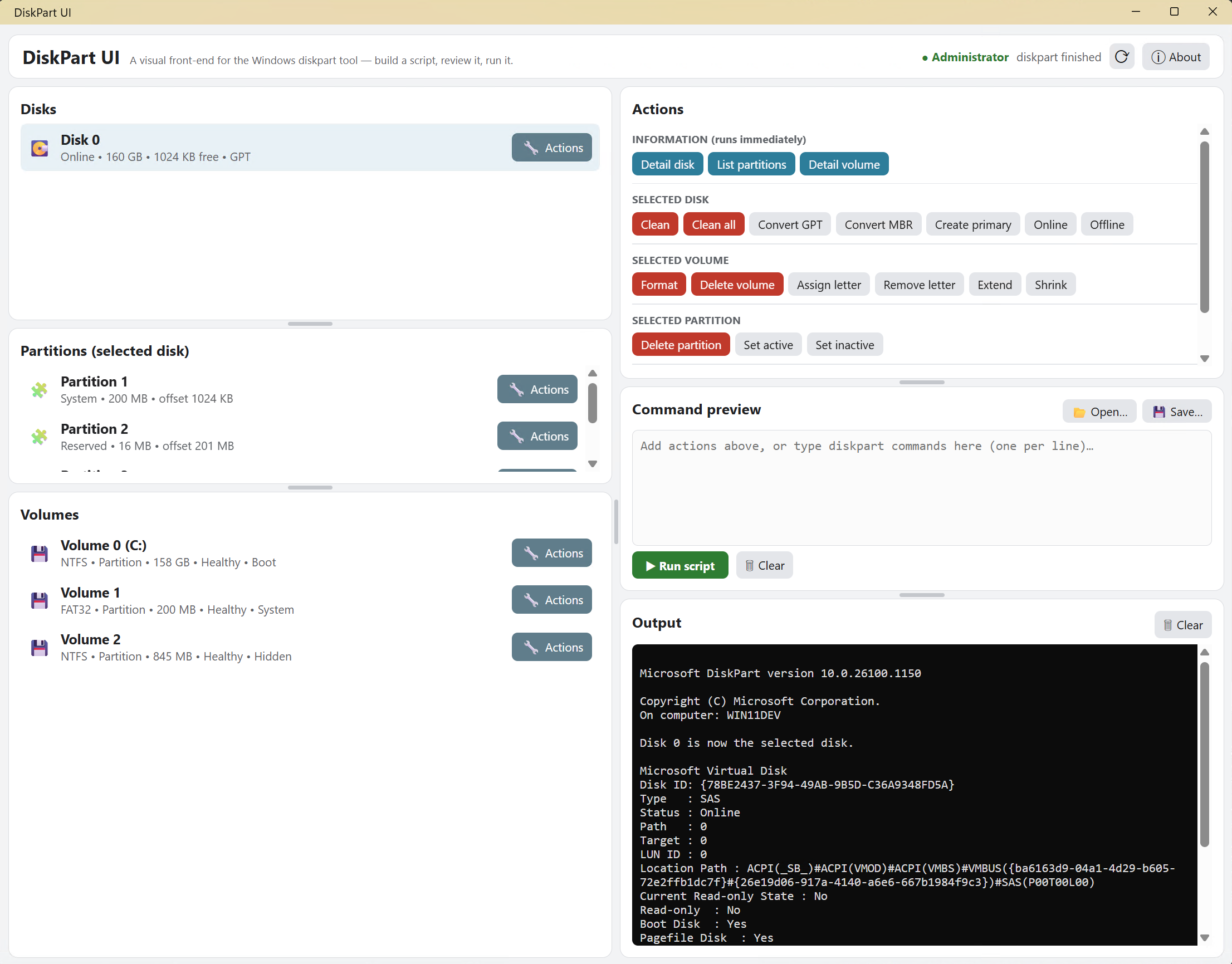
A neat little tool, quickly thrown together to scratch a specific itch: formatting bootable
flash drives tends to leave unallocated space behind, and reclaiming it means reaching for
diskpart's clean — then remembering the exact command sequence every single time.
diskpart is powerful but unfriendly: an interactive, all-text console where one mistyped
line can wipe the wrong disk. DiskPart UI wraps it in a .NET MAUI desktop app that lists
your disks/volumes/partitions, lets you assemble operations by clicking, shows you the exact
script it will run, and only touches the disk after you confirm.
📝 I used CliWrap to call the command line. I already made a blog post about that here if you are interested.
📝 Blog post about DiskPart UI app: https://eecs.blog/diskpart-ui-app/
- What it is
- Highlights
- Feature tour
- Requirements
- Running locally
- Administrator rights
- Security warning on first launch
- How it works
- Project layout
- Testing
- Safety & limitations
- License
- A Windows-only desktop app built as a .NET MAUI Blazor Hybrid — a native MAUI window
hosting a
BlazorWebView, so the UI is Razor components + CSS while the app keeps native powers (elevation, process launch, file pickers). Runs unpackaged. - A thin, transparent wrapper: it never hides what it does — every action becomes visible
diskpartcommands you review before running. - A build-then-run model: read-only queries run immediately; anything that changes a disk is queued into an editable script and executed only on demand, behind a confirmation.
- 🖥️ Live view of disks, partitions, and volumes, parsed from
diskpart's own output. - 🧩 Point-and-click script builder for the common operations, with an editable preview.
- 🛡️ Confirmation gate before any script runs, with an explicit destructive-data warning.
- 🧰 A per-item Actions menu on every disk/volume/partition row.
- 💾 Open / Save the generated script to a
.txt/.dpfile. - 🪟 Resizable, persisted layout — drag the splitters; sizes are remembered across launches.
- 🌗 Light / dark theme aware throughout.
On launch (and on ↻ Refresh) the app runs the read-only list disk / list volume
commands and shows the results as selectable lists. Select a disk and its partitions load
automatically. Detail disk / Detail volume dump the full detail … output.
Select a disk/volume/partition and click an action — Clean, Convert GPT/MBR,
Create primary, Format, Assign letter, Extend, Shrink, Set active,
Delete, and more. Each appends the matching diskpart commands (with the right
select … prefix) to the Command preview box. Nothing touches the disk yet.
The preview box is a plain editable text area — tweak it, or type raw diskpart commands
yourself. Run script shows a confirmation with the exact commands and a warning that
clean / delete / format permanently erase data, then executes and streams the output
into the Output panel.
Every row has an Actions button that opens a color-coded popup (blue = info, gray = neutral, red = destructive) listing exactly the operations valid for that item.
Open… loads a saved script into the preview; Save… writes the current script out — both through the native Windows file pickers.
The three left cards, the three right cards, and the column split are separated by drag
handles (CSS + a small JS splitter). The two columns default to 50/50; every size you set is
saved to the WebView's localStorage and restored next time.
One action assembles the whole clean → convert mbr → create partition → active → format → assign sequence for a bootable drive, behind a strong confirmation.
- Windows 10 (1809 / build 17763) or later
- .NET 10 SDK with the MAUI workload
(
dotnet workload install maui-windows) - Visual Studio 2022 (17.13+) or Visual Studio 2026 with the .NET Multi-platform App UI development workload (optional — the CLI is enough)
Just want to run it? Grab the latest build from the
Releases page — either the
-setup.exe installer or the portable -win-x64.zip (unzip anywhere and run
DiskPartUI.exe). Both are self-contained, so no .NET runtime or Windows App SDK install is
needed; the app asks for administrator rights on launch.
To build it yourself — from Visual Studio: open DiskPartUI.slnx, select the
Windows Machine target, press F5.
From the command line:
dotnet build -c Debugdotnet run -c Debug -f net10.0-windows10.0.19041.0Launched from a normal terminal you get one UAC prompt; from an already-elevated terminal it starts straight away.
diskpart cannot run without elevation, so the whole app is marked requireAdministrator
in Platforms/Windows/app.manifest. Launching
DiskPartUI.exe shows a single UAC prompt and the app then runs elevated.
Debugging in Visual Studio: because the app requests admin rights, VS prompts you to restart as Administrator the first time you press F5. That is expected — VS must itself be elevated to debug an elevated process.
The released builds are not code-signed, so Windows shows an "unknown publisher" warning the first time you download or run them. This is expected for an unsigned app — it is a reputation check, not a sign that anything is wrong with the download.
You may see it in up to three places:
- When downloading — the browser (SmartScreen) flags the file as not commonly downloaded. Choose Keep / Keep anyway.
- When launching — a blue "Windows protected your PC" dialog appears. Click More info, then Run anyway.
- At the UAC prompt — because the app runs elevated, the prompt shows Publisher: Unknown. That is the same missing signature; choose Yes to continue.
Every release lists a SHA-256 digest next to each asset on the Releases page. Confirm your copy matches before running it:
Get-FileHash .\DiskPartUI-*-setup.exe -Algorithm SHA256If the hash matches the one on the release, the file is byte-for-byte the published build.
Windows tags files from the internet with a "mark of the web" that triggers the launch prompt. Once you have verified the download, you can remove that tag so it does not warn again — either via Right-click → Properties → Unblock, or:
Unblock-File .\DiskPartUI-*-setup.exeThe proper long-term fix is an Authenticode code-signing certificate, which would remove these warnings entirely. Until the builds are signed, the steps above are the way through.
- MAUI Blazor Hybrid, Windows-only, unpackaged — a native MAUI window (
MainPage) hosts aBlazorWebViewthat renders theMainRazor component. The app targetsnet10.0-windowswithWindowsPackageType=None, so the Win32app.manifest(and its admin request) applies. - Execution — commands are written to a temp file and run as
diskpart /s <file>via CliWrap; output is captured and shown verbatim. Calls are serialized with a semaphore so twodiskpartinstances never run at once. - Parsing —
diskpart's fixed-width text tables are turned into typed objects by locating the dashed separator row and slicing each data row at the dash-group positions. - MVVM over Blazor —
MainViewModel(CommunityToolkit.Mvvm) owns all state and commands; theMaincomponent binds to it and re-renders on itsPropertyChanged/CollectionChangedevents. Services are injected through the MAUI DI container; confirm/prompt dialogs use the native MAUI page dialogs.
Key source files:
| File | Responsibility |
|---|---|
Components/Main.razor |
The entire UI as one Razor component; drives MainViewModel and re-renders on its change events. |
wwwroot/app.css / js/splitter.js |
Styling (theme-aware) and the drag-to-resize splitters with localStorage persistence. |
MainPage.xaml |
A ContentPage hosting the BlazorWebView (root component = Main). |
Services/DiskPartService.cs |
Runs diskpart /s <file> via CliWrap; serializes calls; returns a DiskPartResult. |
Services/DiskPartParser.cs |
Parses the fixed-width list disk / list volume / list partition tables into models. |
Services/DialogService.cs |
Confirm / prompt / alert dialogs (native MAUI), decoupled from any Page reference. |
Services/FileDialogService.cs |
Native WinRT open/save file pickers (HWND-initialized for the unpackaged window). |
Services/ElevationHelper.cs |
Detects whether the process is elevated. |
ViewModels/MainViewModel.cs |
All app logic: the command builders, run/confirm flow, selection, busy tracking, per-item menus. |
Models/*.cs |
DiskInfo, VolumeInfo, PartitionInfo, DiskPartResult, MenuAction. |
DiskPartUI/
  App.xaml(.cs)                 # app entry; builds the single window
  MauiProgram.cs                # MAUI host + BlazorWebView + DI registrations
  MainPage.xaml(.cs)            # ContentPage that hosts the BlazorWebView
  Components/                   # Main.razor (the whole UI), _Imports.razor
  wwwroot/                      # index.html, app.css, js/splitter.js
  Models/                       # DiskInfo, VolumeInfo, PartitionInfo, DiskPartResult, MenuAction
  Services/                     # DiskPartService, DiskPartParser, DialogService,
                                #   FileDialogService, ElevationHelper
  ViewModels/MainViewModel.cs   # app logic and commands (CommunityToolkit.Mvvm)
  Platforms/Windows/            # app.manifest (requireAdministrator), Package.appxmanifest
  Resources/                    # fonts, icons, splash
  installer/                    # Inno Setup script + installer smoke test
  tests/                        # xUnit tests (net10.0), linking the pure-logic sources
DOCUMENTATION.md                # developer documentation
README.md
The pure C# logic — the diskpart output parser and the models' computed display strings —
is covered by xUnit tests in tests/. The test project targets plain net10.0
and compiles those source files directly (they have no MAUI dependencies), so the suite runs
fast with no Windows-app/WinUI/elevation entanglement:
dotnet testThe process-launching, dialog, file-picker, elevation, and UI layers are integration concerns
(they touch the OS, a live window, or diskpart itself) and are exercised by running the app,
not by unit tests.
diskpartoperates on raw disks.clean,delete, andformatpermanently erase data and there is no undo. Always confirm the selected disk. Use at your own risk.- The confirmation before Run script is the single gate; individual action buttons only queue commands into the preview — they never touch the disk on their own.
- Windows-only by nature —
diskpartdoes not exist on other platforms.
Provided as-is, without warranty, as a personal/developer tool. You are responsible for what you run against your disks.