
A lightweight, customizable crosshair overlay for competitive gaming on Windows.








LightCrosshair adds a customizable crosshair overlay to Windows 10/11 games and desktop apps, with quick hotkeys, profiles, optional performance information, and supported per-app GPU driver settings. It is designed for borderless or windowed play and does not inject into games or use game hooks.
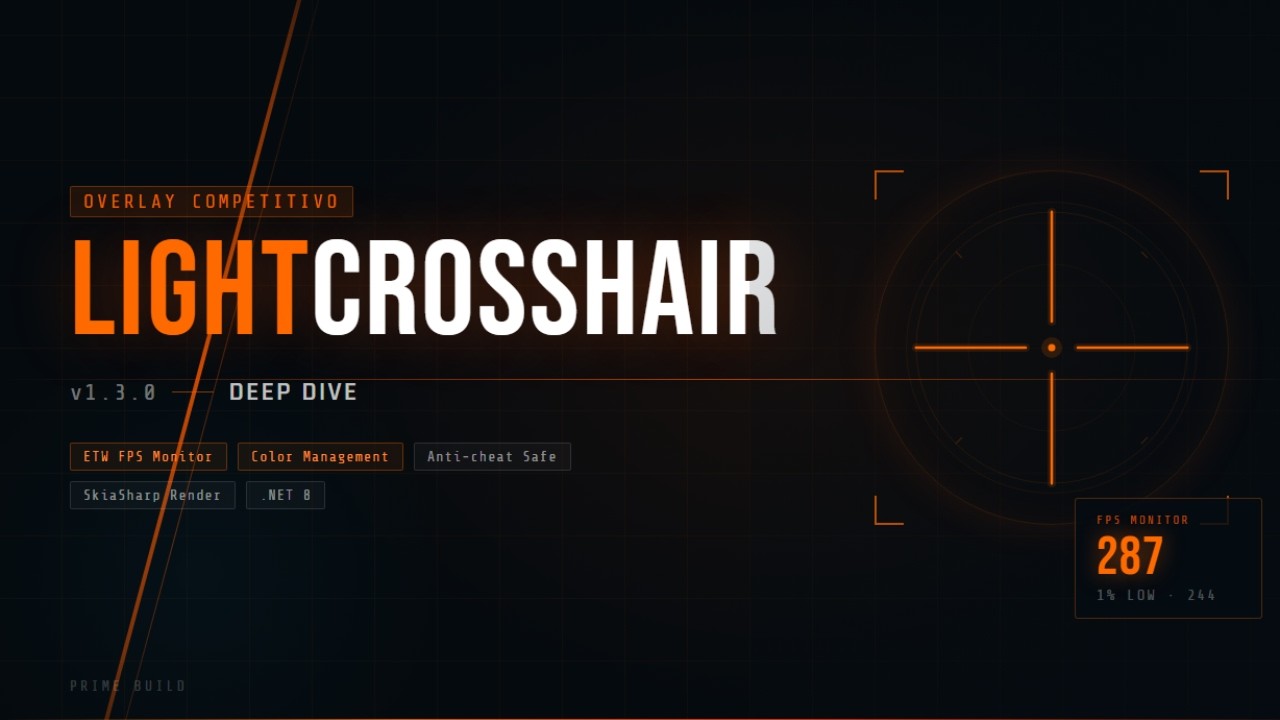
Watch the demo on YouTube

|

|

|

|

|

|
Download the latest build from the GitHub Releases page.
Use the installer for the normal Start Menu experience:
LightCrosshair-Setup-1.8.0.exeSHA256:1F25C2B6DF489568B8E65539DA5F2D82ECE57D65172669616AB45DF7C125B8A7
Use the portable ZIP if you want to extract and run the app from a folder you control:
LightCrosshair-v1.8.0-x64.zipSHA256:F104BCE76926BAE253358EDD9655E9D92BB0DCE207DCD805D80A72FB111656DBLightCrosshair-v1.8.0-ARM64.zipSHA256:806BBAD3CB7D380593F69C10F9D15EFC1B88C5B58ADA9BE102D2F0CEA91A0E6C
WinGet package updates may lag behind GitHub Releases. When available, this may install the latest approved package version, not necessarily v1.8.0:
winget install --id PrimeBuild.LightCrosshair --exactChocolatey and WinGet updates may remain pending while their community repositories validate the latest release.
- Launch LightCrosshair from the Start Menu or run
LightCrosshair.exefrom the portable folder. - Open Settings with
Alt + Lor the tray icon. - Customize the crosshair shape, size, gap, color, opacity, and outline.
- Save profiles for different games or visibility needs.
- Enable the performance overlay only when you need it.
| Hotkey | Action |
|---|---|
Alt + X |
Toggle crosshair visibility |
Alt + C |
Next profile |
Alt + V |
Previous profile |
Alt + L |
Toggle Settings window |
- Custom crosshair builder with shape, size, thickness, gap, color, opacity, and outline controls.
- Profile workflow for switching quickly between games or setups.
- Visibility presets for high-contrast crosshairs.
- Optional performance overlay with Off, Minimal, and Detailed modes.
- Frame Cap Assistant for target-FPS guidance.
- Supported NVIDIA per-app profile controls and AMD-related display/color paths.
- Independent monitor selection for the crosshair and FPS overlay, with DPI-aware positioning.
- Non-injected design with no game hooks.
- Added independent monitor selection for the crosshair and FPS overlay.
- Added automatic fallback to the primary display when a configured monitor is unavailable.
- Preserved previous monitor settings through a backward-compatible configuration migration.
- Reduced the FPS overlay window to the selected display instead of spanning the full virtual desktop.
- Kept monitor changes event-driven, with no extra polling or render-loop work.
- Windows 10 or Windows 11.
- .NET 8 Windows Desktop Runtime for framework-dependent builds.
- Borderless windowed or windowed game mode is recommended for overlay visibility.
- LightCrosshair does not inject into games and does not use game hooks.
- Exclusive fullscreen can hide normal overlays; use borderless windowed or windowed mode when possible.
- Frame Cap Assistant provides guidance only and does not enforce a real FPS cap.
- Frame pacing diagnostics use conservative heuristics, ETW-style present telemetry analysis, and optional RTSS fallback paths; PresentMon integration remains a future target and is not implemented as a live runtime backend.
- Frame-generation and DLSS runtime control are not implemented.
- NVIDIA profile writes are per-app only where supported; LightCrosshair does not write global NVIDIA profiles.
- Some games or anti-cheat systems may block overlays or behave differently.
git clone https://github.com/PrimeBuild-pc/LightCrosshair.git
cd LightCrosshair
dotnet build LightCrosshair.sln --configuration Release
dotnet test LightCrosshair.sln
Contributions are welcome through focused bug reports, feature requests, documentation updates, and tested pull requests.
This project is licensed under the MIT License. See LICENSE.
If LightCrosshair is useful to you, consider supporting the project.




Every star, issue report, feature request, and donation helps keep the project alive.
Made with ❤️ for the gaming community.