
This tool helps you find your phone if it gets lost or stolen. It sends the phone's live location straight to your private Telegram app.
Follow this simple, step-by-step guide to set it up. No coding skills needed!
First, install the tracker app on the Android phone you want to plant the tracker.
We need to create a private system that sends the location maps directly to you.
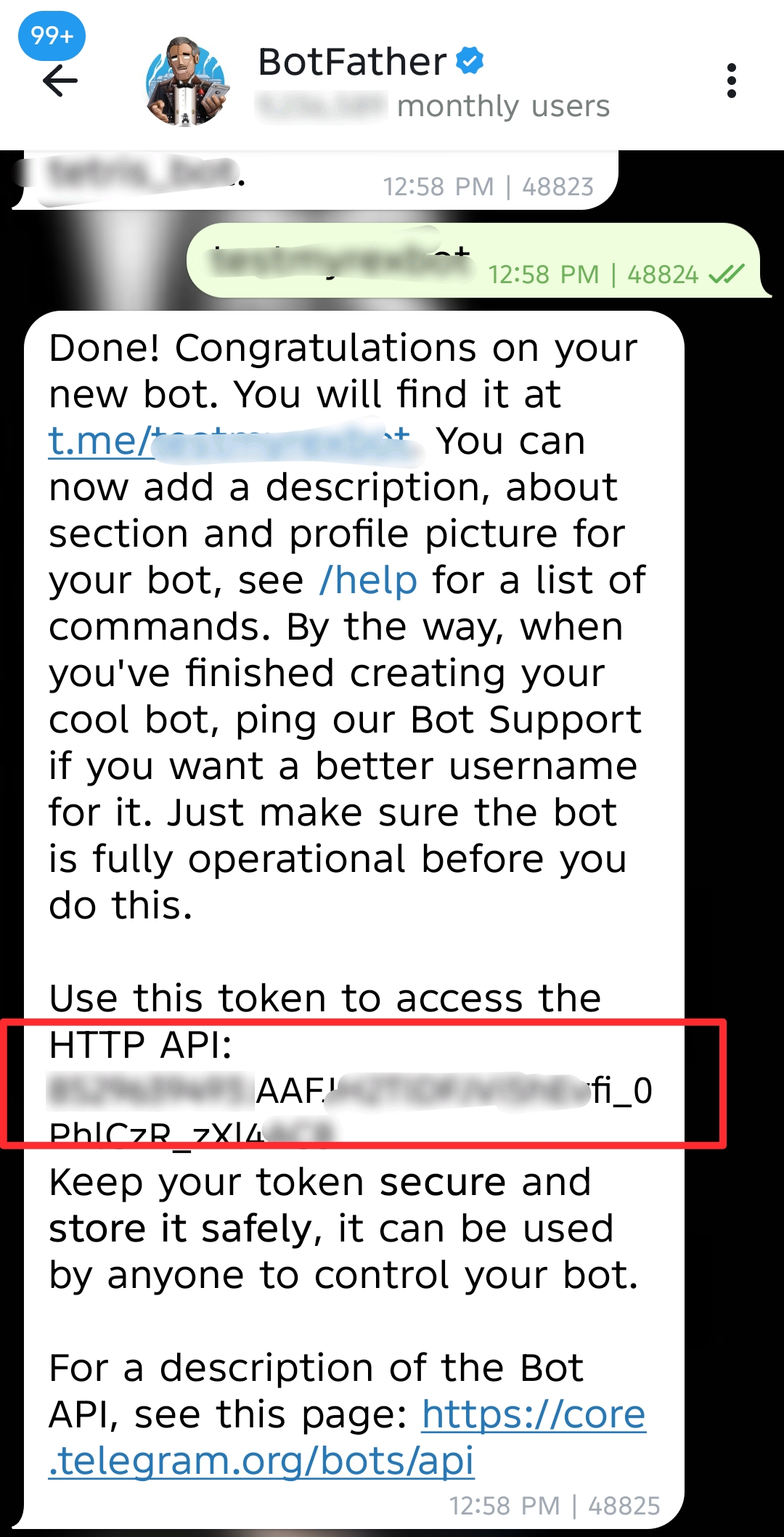
- Open your Telegram app and search for
@BotFather(look for the blue verified checkmark). - Type and send:
/newbot - Give your bot a name (example:
MyFinderBot). - Give it a username that ends in "bot" (example:
joker_finder_bot). - BotFather will send you a long code called a Token. Copy this code and keep it safe!
- In Telegram, search for
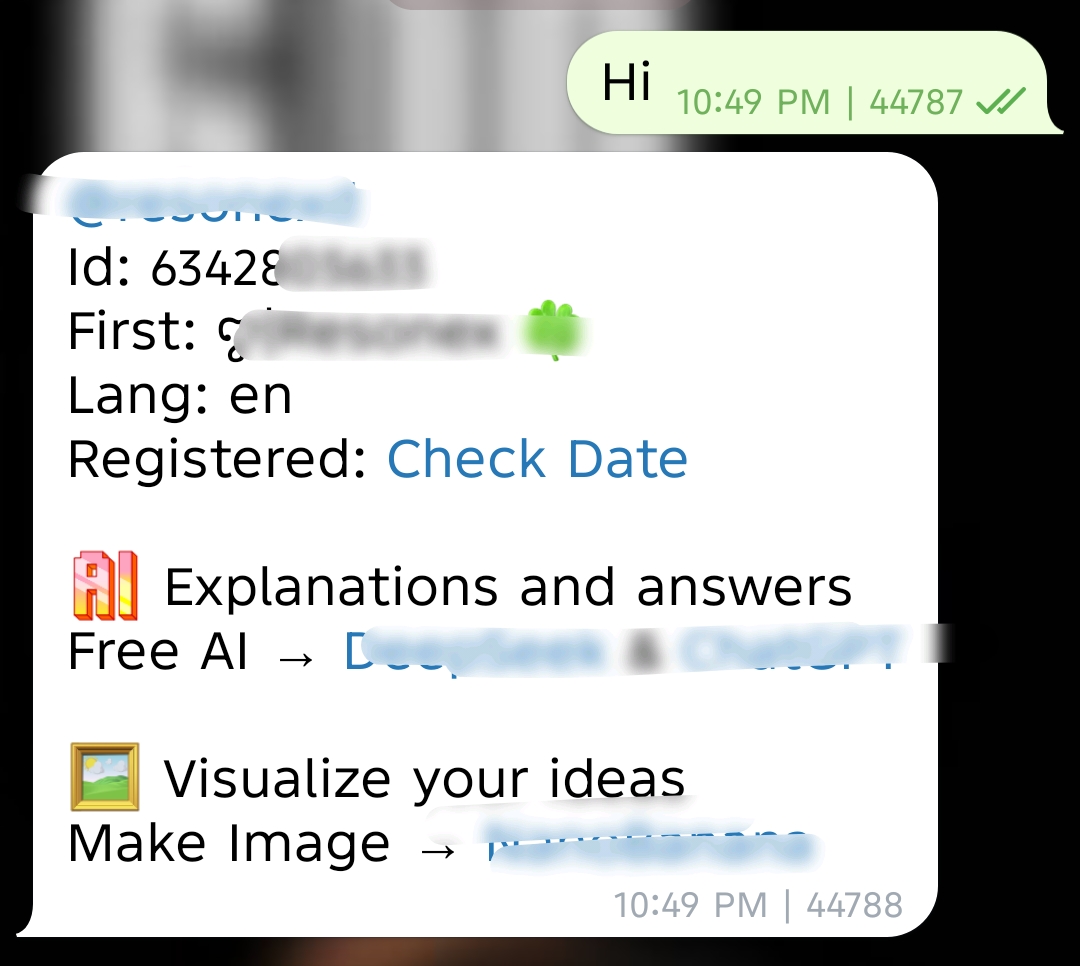
@userinfobot. - Type and send:
/start - It will reply with a number called your Id. Copy this number!
Now we put the tracker online using a free hosting service called Vercel.
- Look at the top right of this GitHub page and click the Fork button to make your own copy of this project.
- Go to Vercel.com and sign up for a free account using your GitHub login.
- On your Vercel dashboard, click Add New then click Project.
- Find this project name in the list and click Import.
To make sure nobody else can see your tracking information, we hide your keys inside Vercel's secure settings.
On the Vercel setup page, click on Environment Variables and add these 3 things exactly like this:
| Key Name | What to Paste in the Value Box |
|---|---|
BOT_TOKEN |
Paste the long token code you got from @BotFather. |
CHAT_ID |
Paste the ID number you got from @userinfobot. |
AUTH_TOKEN |
Type any secret password you want! (Example: mysecret99). Remember this! |
Now, click the big Deploy button. Wait 1 minute, and Vercel will give you a live website link (example: https://your-name.vercel.app).
Open the tracker app you downloaded on your phone in Step 1 and type in your deployment details:
- 🌐 Vercel URL: Paste the live link Vercel just gave you.
- 🔑 Authorization Key: Type the exact secret password you made up in Step 4.
Tap the Deploy Configurations button to link them together.
Your setup is done! If you ever lose your phone, you can track it instantly in two different ways:
Open your personal bot chat window on Telegram and type /menu. Use the dynamic screen buttons to fetch live telemetry or drop a direct Google Maps pin.
Open any web browser and visit your Vercel link with /view added to the very end:
https://your-name.vercel.app/view
This opens a clean, dark terminal dashboard showing your phone's current battery life, network state, and map coordinates.