




Nextcloud app that implement a basic facial recognition system.
FaceRecognition is a Nextcloud application with a goal of recognizing, analyzing and aggregating face data in users images, and providing additional functionalities on top of these information, all with built-in privacy of Nextcloud. Imagine Google Photos, but only for faces (not detecting objects…) and in such way that your images never leave your Nextcloud instance. 😃
The application listens to the creation of new image files, and queues them for later analysis. A scheduled task (Or admin on demand) take this queue, and analyze the images for looking faces and if possible identify them grouping by similarity.
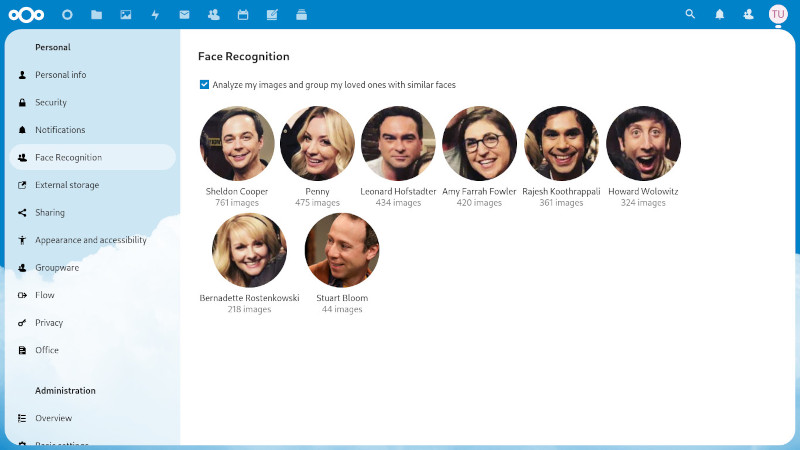
The administrator must properly configure the application, and once it is working, the user must accept that he wants to allow the analysis of his images to discover his friends. Finally the user can use the application in three ways
- In the user settings there is a 'Face Recognition' panel where first of all each user must enable the analysis. Once enabled, you will progressively see the discovery of your friends, and you can assign them names.
- In the file application the user can search by typing your friend's name, and it will show all the photos.
- In the side panel of the file application, a 'Persons' tab is added where you can see a list of your friends in the photo, and rename them. Also you can select the folders you want to ignore for the process.
- In the side panel of the Photos application, a 'Persons' tab is added where you can see a list of your friends in the photo, and rename them.
If you'd like to support the creation and maintenance of this software, consider donating.



- Nextcloud 34
- Dlib PHP bindings
- PHP Bzip2
- 1GB of RAM
Ideally once you meet the requirements, you can install and enable it from the nextcloud app store. For details and advanced information read the documentation about installation.
Building from source:
If you need to install from source (for development or testing):
cd /path/to/nextcloud/apps/
git clone https://github.com/matiasdelellis/facerecognition.git
cd facerecognition/
make
The make command will:
- Install PHP dependencies (composer)
- Install JavaScript dependencies (npm)
- Build Vue.js frontend components (webpack)
- Copy vendor JavaScript libraries (lozad, handlebars, autocomplete, egg.js)
- Compile Handlebars templates
Important: Running only npm run build is not sufficient. You must run the full make command (or make build) to ensure all dependencies are properly built and copied to the js/ directory.
For development with auto-rebuild:
npm run watch # Watches and rebuilds webpack bundlesNote: After making frontend changes, you may need to run make vendor-deps and make js-templates if you modified vendor dependencies or Handlebars templates.
Before proceeding to analyze the images, you must indicate how much memory you
want to assigns to image processing and then must properly install and configure
the pretrained models using the occ face:setup command. For details and
advanced information read the documentation about models.
Then you must indicate the size of the images used in the temporary files from the Nextcloud settings panel. This configuration will depend on your installation and has a direct impact on memory consumption. For details and advanced information read the documentation about Temporary files.
JPEG and PNG are analyzed on any setup. On top of those, HEIC/HEIF, TIFF and AVIF are analyzed when the image backend of your server can decode them:
- Decoding the images locally, the three depend on the Imagick extension, when it was built with the proper delegates (libheif, libtiff, libavif).
- With an Imaginary service, configured
with the
preview_imaginary_urlkey, the three are analyzed.
GIF, BMP and WebP are deliberately left out, even though the local backends read them: they are the formats of memes, stickers and screenshots, so analyzing them mostly fills the results with the faces of drawings and video captures, that you then have to reject by hand.
The requirements check that runs at the start of occ face:background_job
writes the resulting list to the log, in debug level. To force any additional
mimetype, GIF and WebP among them, add it to the
enabledFaceRecognitionMimetype array in config.php.
We recommend test the application intensively before proceeding to analyze the
real data of the users. For this you can create a new user in your Nextcloud
instance and upload some photos from the internet. Then you must run the
occ face:background_job -u new_user -t 900 command for this user and evaluate
the result. For details and advanced information read the documentation of this
command.
If you just want to try the application, or to test your changes without
touching your own instance, there is a docker compose setup in the docker/
directory that brings up a Nextcloud instance with the application and all its
requirements already installed:
docker compose -f docker/compose.yaml up -d --buildSee docker/README.md for details.
The application is designed to run as a scheduled task. This allows analyze the photos and showing the results to the user progressively. You can read about some ways to configure it within our documentation about Schedule Background Task.
To speed up the analysis on machines with several cores, the image analysis can
run in parallel with occ face:background_job --workers=4. The command then
acts as a coordinator: it runs the file synchronization and the clustering
itself, and spawns the workers that analyze the images, each one taking its own
share. Every worker loads its own copy of the model in memory, so the memory
needed grows with the number of workers. It requires the pcntl extension
(standard on Linux, macOS and FreeBSD, not available on Windows), and is not
recommended on instances that use SQLite. See
doc/occ-commands.md for details.
The doc/ directory documents the parts that are not obvious from the
code, for whoever wants to change them:
- doc/clustering.md: how the faces are grouped, why the clusters are grown instead of rebuilt, what a run costs and how it is bounded, and how the clusters of one person are proposed to be linked.
- doc/data-model.md: what each table and each row means, and in particular the difference between a cluster and a person.
- doc/occ-commands.md: exhaustive reference of every
occcommand, its options and behavior.
The application adds commands to the Nextcloud's command-line interface.
| Command | Purpose |
|---|---|
occ face:setup |
Configure the memory limit and install the recognition model. |
occ face:background_job |
Analyze images, extract faces and cluster them. |
occ face:sync-albums |
Create/update photo albums per person in the Photos app. |
occ face:reset |
Delete analysis data to start over. |
occ face:migrate |
Migrate faces from one model to another. |
occ face:stats |
Show a summary of images, faces and persons. |
occ face:progress |
Show the progress of the analysis and an ETA. |
For the exhaustive documentation of every command, its options, examples and behavior, see doc/occ-commands.md.
To get started, you must first configure the application with occ face:setup,
and then schedule occ face:background_job as a cron job.