






VigilantCore is a local, cross-platform monitoring app that tracks Impactful Events for a specific subject, using a local LLM (Ollama) to score impact and generate predictive outcomes. It is designed to be simple for non-technical users while still offering an AI-driven, location-aware signal.
All AI processing happens locally on your computer - no data is sent to external servers.
Get started in one command:
- Linux/macOS:
curl -fsSL https://raw.githubusercontent.com/nikolareljin/vigilant-core/main/scripts/quickstart.sh | bash- Windows:
git clone https://github.com/nikolareljin/vigilant-core.git
cd vigilant-core
.\scripts\quickstart.ps1
→ Jump to detailed installation instructions
- AI-Powered Insights: Ask specific monitoring questions and get AI-generated answers
- Relevance-Aware Reasoning Context: Insight prompts only inject alerts that are fresh and on-topic for your question, while preserving older records that remain structurally relevant (e.g. past power-grid failures inform grid risk in a new storm). Stale or off-topic data — like leftover snow forecasts during a summer storm — no longer pollutes the reasoning. Tunable via
context_*settings. - Impact Scoring: Every alert scored 1-10 for relevance and urgency
- Location-Aware: Filter alerts by ZIP code, coordinates, or radius
- Automatic Local Discovery: When you provide a ZIP code, automatically finds:
- NWS weather alerts for your state
- Local police, fire, and emergency management alerts
- Power outage maps (including
poweroutage.ussearch coverage) and utility alerts - Water, gas, solar, and wind infrastructure incident signals
- Transportation/traffic/transit/airport and airline disruption signals
- Local news and government sources
- Context-Aware Extreme Event Coverage: Flooding, tornadoes, wildfires, winter storms, earthquakes, industrial incidents, and conflict/crisis monitoring queries
- International Regional Coverage: Canada, Europe (priority), North Africa, China/Far East, Australia, South Africa, Central America, South America, plus broader Middle East/South Asia/Southeast Asia/Sub-Saharan Africa/global fallback
- Coordinate-First Source Discovery: Latitude/longitude alone can infer region and automatically seed relevant regional source URLs and localized Google News feeds
- Source Preview UI/API: Setup page preview and
/api/source-previewendpoint show the inferred region and curated source URLs before saving - Source Health Indicators: Track per-source last successful fetch time, cumulative error count, and latest fetch latency in the dashboard and
/api/source-health - AI Suggested Actions Toggle: Enable/disable actionable suggestions shown next to the AI insight result from settings
- Unified Event Normalization: All alerts are normalized into a consistent schema with
severity,confidence, UTC-normalized timestamps, and structured location fields - Event Deduplication Engine: Overlapping alerts from different feeds/search providers are merged into one canonical event with aggregated source attribution
- SQLite Local Cache: Stores normalized alerts plus
event_historyandsource_metadatarecords for traceable local event persistence - Multiple Data Sources: NewsAPI, DuckDuckGo, Google CSE, RSS feeds, local discovery, and curated global sources (including disaster/crisis signal sources)
- Cross-Platform: Web dashboard and Qt desktop app
- Privacy-First: All processing done locally via Ollama
- First Run: Open the app, enter your subject, location, and optional RSS feeds/API key.
- Set Monitoring Question: Ask a specific question like "When is the peak risk of power outage?"
- Live Impact Feed: The dashboard shows scored alerts with AI-generated insights (timestamps use the host's local time by default, or
DISPLAY_TIMEZONEif set in.env). - Impact Scoring: Each alert is ranked from 1–10 based on relevance and urgency.
- Stay Informed: New alerts appear in near real-time and are stored locally.
- 1–3: Low relevance or weak impact.
- 4–6: Moderate impact or early advisory signals.
- 7–10: High-impact events, warnings, or imminent disruptions.
VigilantCore prefers local signals by combining:
- ZIP-based geocoding (offline) to a center point.
- Radius filtering (default 50km).
- Keyword matching on location name and ZIP.
When you provide a ZIP code or coordinates, VigilantCore automatically discovers relevant local sources:
Weather & Emergency Alerts:
- NWS (National Weather Service) CAP alerts for your state
- Severe weather warnings and advisories
Emergency Services:
- Local police department alerts
- Fire department news
- County emergency management updates
- Road closures and travel advisories
Utilities:
- Power company outage information
- Electric utility service alerts
- Water utility advisories and boil-water alerts
- Gas utility emergencies and leak notices
- Renewable energy infrastructure incidents (solar/wind) when relevant
Local News:
- County/city government news feeds
- Local newspaper RSS feeds
Transportation & Critical Infrastructure:
- Traffic and DOT incident updates
- Transit/rail service disruption alerts
- Airport/airline delay and cancellation signals
Global Crisis / Conflict (subject-driven):
- If your subject mentions war/conflict/crisis terms, VigilantCore expands search/feed queries for international conflict and humanitarian risk updates
International Regions (location/lat-lon aware):
- Regional source URLs and searches are automatically prioritized for Canada, Europe, North Africa, China/Far East, Australia, South Africa, Central America, and South America
- Additional fallback coverage includes Middle East, South Asia, Southeast Asia, and Sub-Saharan Africa where public sources are available
VigilantCore now uses a layered source-discovery approach for outage/extreme-event monitoring:
- Infer region from ZIP code, location text, or latitude/longitude (lat/lon works by itself).
- Select curated regional URLs (utilities, emergency agencies, weather services, transport/aviation operations, and major regional news).
- Generate localized Google News RSS feeds using region-specific locale settings (
gl,hl,ceid). - Expand context-aware searches for utilities, transportation, disasters, and conflict/humanitarian crises.
- Discover RSS feeds from candidate sites and merge with user-provided feeds and other search/API sources.
This improves coverage in places where direct RSS feeds are inconsistent or unavailable.
Before AI parsing and SQLite persistence, VigilantCore de-duplicates incoming alerts by:
- URL-level duplicate suppression
- semantic overlap checks (title/body token similarity)
- event-time proximity checks (default 6-hour overlap window, applied only when both events have timestamps)
When multiple sources describe the same incident, VigilantCore stores a single merged event and combines source attribution (for example: Source A | Source B).
See docs/event-deduplication.md for detailed deduplication behavior.
If you provide only coordinates:
latitudelongitude
VigilantCore can still:
- infer an approximate region
- select localized regional source URLs
- generate localized Google News feeds
- preview the selected region/sources before saving
The setup page includes a Regional Source Preview panel that shows:
- inferred region key/label
- curated source URL count
- curated source URLs that will be prioritized
- coordinate values are range-validated before region inference (
lat=-90..90,lon=-180..180)
Programmatic preview:
curl "http://127.0.0.1:8765/api/source-preview?latitude=48.8566&longitude=2.3522"Another example:
curl "http://127.0.0.1:8765/api/source-preview?location_name=Toronto,%20Ontario,%20Canada"See docs/source-discovery.md for the full coverage list and implementation behavior.
For example, ZIP code 08544 (Princeton, NJ) automatically adds NWS New Jersey alerts, searches for PSE&G outage info, and finds Mercer County emergency resources.
- Python 3.10+ (Linux/macOS)
- Python 3.12 (Windows)
- Git (for cloning/updating)
- Ollama (automatically installed by quickstart scripts)
Choose the command for your operating system:
| Platform | Command |
|---|---|
| Linux | curl -fsSL https://raw.githubusercontent.com/nikolareljin/vigilant-core/main/scripts/quickstart.sh | bash |
| macOS | curl -fsSL https://raw.githubusercontent.com/nikolareljin/vigilant-core/main/scripts/quickstart.sh | bash |
| Windows (PowerShell) | .\scripts\quickstart.ps1 -TargetDir "." (after cloning repo) |
| Windows (CMD) | set TARGET_DIR=. then .\scripts\quickstart.bat (after cloning repo) |
From anywhere on your system (no repository needed):
curl -fsSL https://raw.githubusercontent.com/nikolareljin/vigilant-core/main/scripts/quickstart.sh | bashor with wget:
wget -qO- https://raw.githubusercontent.com/nikolareljin/vigilant-core/main/scripts/quickstart.sh | bashIf you already have the repository:
./scripts/quickstart.shStep 1: Clone the repository (first time only)
git clone https://github.com/nikolareljin/vigilant-core.git
cd vigilant-core
Step 2: Run the quickstart script
PowerShell (Recommended):
.\scripts\quickstart.ps1 -TargetDir "."Command Prompt:
set TARGET_DIR=.
.\scripts\quickstart.bat
Note: Unlike Linux/macOS, Windows users need to clone the repository first. The remote curl/wget approach doesn't work well on Windows due to PowerShell execution policies.
What the quickstart scripts do:
- ✅ Ensure Python 3.12 is available on Windows (auto-installs if missing)
- ✅ Install/check Git
- ✅ Clone or update the repository
- ✅ Create and activate virtual environment
- ✅ Install all Python dependencies
- ✅ Install Ollama CLI (via official installer or winget)
- ✅ Start Ollama service
- ✅ Download default AI model (llama3.2:1b - ~900MB)
- ✅ Launch the web dashboard at http://127.0.0.1:8765
First-time setup takes 5-10 minutes (mostly downloading the AI model). Subsequent runs are instant.
Linux:
- Requires
curlorwgetfor remote installation - Ollama installed via official script from ollama.com
- May require
sudofor some package installations
macOS:
- Requires Homebrew for Ollama installation
- If Homebrew not installed, get it from brew.sh
- All installations work without sudo
Windows:
- Python 3.12 required for consistent Windows dependency support
- Requires winget for automatic Ollama installation
- winget included with Windows 11 and Windows 10 (recent versions)
- Alternative: Manual Ollama download from ollama.com/download
- PowerShell: Run as user (no admin needed)
- Command Prompt: Run as user (no admin needed)
"Ollama installation failed"
- Download and install manually from ollama.com/download
- Run the quickstart script again after installation
"Model download is slow"
- The llama3.2:1b model is ~900MB
- Speed depends on your internet connection
- You can cancel (Ctrl+C) and continue later with:
ollama pull llama3.2:1b
"Python not found" or "Git not found"
- Windows: Install Python 3.12.x from python.org
- If quickstart auto-installs Python, close the current terminal and run quickstart again so PATH changes are picked up
- Linux/macOS: Install Python 3.10+ from your package manager or python.org
- Install Git from git-scm.com
- Ensure both are added to your system PATH
If you prefer manual setup or the quickstart script doesn't work for your system:
- Clone the repository
- Run the launcher script:
Linux/macOS:
./run.sh          # Start web dashboard (default)
./run.sh qt       # Start Qt desktop app
./run.sh both     # Start both (web in background)
./run.sh stop     # Stop all instances
./run.sh status   # Check what's running
Windows:
run.bat           # Start web dashboard
run.bat qt        # Start Qt desktop app
run.bat stop      # Stop all instances
The launcher will automatically create a virtual environment and install dependencies.
Configure the dashboard:

In the examples above, public location was defined with Longitude/Latitude. You can use your own location, ZIP code, address and longitude/latitude.
Open your browser to: http://127.0.0.1:8765

Initial results of the search.
Results view with the AI generated content:

Launch with ./run.sh qt (or run.bat qt on Windows).

Results view with the AI generated content:

The Monitoring Question feature lets you ask specific questions about your monitored subject. The AI analyzes recent alerts and generates focused insights.
Example questions:
- "What is the expected time of highest risk of power outage in my area?"
- "Should I clear my driveway now, or wait until the snow stops?"
- "Are there any travel advisories affecting I-95?"
The insight appears as an expandable card above the alerts list, showing:
- Summary: Brief answer to your question
- Explanation: Detailed analysis with supporting evidence
Configure refresh interval in Settings under "AI Settings".
The web interface is available at: http://127.0.0.1:8765
Settings page prompts for:
- Event/Subject - What to monitor
- Monitoring Question - Specific question for AI insights
- Location / ZIP / GPS - Geographic filtering
- Radius (km) - Search area
- AI Settings - Model preferences, insight refresh rate
- Data Sources - RSS feeds, API keys
- Source Health Indicators - Per-source fetch health table (last success, errors, latency, and item counts)
Additional data view: http://127.0.0.1:8765/data
If you provide no RSS feeds or API keys, VigilantCore will still:
- Auto-detect your city/region + ZIP + coordinates (best effort).
- Seed from 30 curated global sources and discover RSS/Atom feeds.
- Add a Google News RSS query built from your subject + location for broader coverage.
- Add local public-safety queries (police, sheriff, fire, emergency management).
- Attempt to discover local police/government and local news RSS feeds near your location.
- Pull social chatter via Reddit search RSS tied to your subject and location.
By default, any RSS feeds you add are merged with the built-in curated sources. If you want to use only the RSS feeds you provide, enable "Only use RSS feeds listed above" in Settings. To skip RSS entirely and use only API/search providers, enable "Disable RSS fetching".
You can control how often the app checks for new data (default 5 minutes).
- Web UI: Polling interval (minutes)
- Qt UI: Polling interval (minutes)
If you set any of the API keys below, VigilantCore will use them automatically. If not set, it falls back to RSS and the built-in discovery.
- Create a Custom Search Engine and set it to Search the entire web: https://programmablesearchengine.google.com/
- Enable the Custom Search JSON API and create an API key: https://developers.google.com/custom-search/v1/overview
- Set:
GOOGLE_CSE_API_KEY=your_key
GOOGLE_CSE_CX=your_search_engine_id- Create a Bing Search v7 resource in Azure: https://learn.microsoft.com/en-us/bing/search-apis/bing-web-search/create-bing-search-service-resource
- Set:
BING_SEARCH_KEY=your_key
# Optional overrides
BING_SEARCH_ENDPOINT=https://api.bing.microsoft.com/v7.0/search
BING_SEARCH_MARKET=en-US
BING_SEARCH_SAFE=Moderate
DuckDuckGo HTML search is available without an API key. Enable/disable it in Settings:
- Web UI: Enable DuckDuckGo web search
- Qt UI: Enable DuckDuckGo web search
If you are on a mobile hotspot or tethered connection, enable:
- Web UI: Optimize for tethered / low-bandwidth connection
- Qt UI: Optimize for tethered / low-bandwidth connection
This mode reduces request volume by limiting source discovery/query budgets and capping feed polling/discovery breadth.
Meta does not provide a general public search API. Access typically requires:
- A Meta app with approved permissions
- A specific Page/IG Business account context If you have a Page or IG Business and want targeted ingestion, open an issue and we can add a provider for specific page IDs.
The default list now includes major US, European, East European, Chinese, Australian, South American, and African outlets. See vigilant-core/utils/sources.py for the full list.
This repo can use the shared script-helpers library like other projects in this workspace.
If the submodule is not present (e.g., CI), scripts fall back to minimal logging.
To use full helpers locally, initialize submodules once:
./updateThese commands create a local virtual environment, install dependencies, and launch the app.
python3 -m venv venv && source venv/bin/activate && pip install -r requirements.txt && python src/main.pypy -3.12 -m venv venv; .\\venv\\Scripts\\Activate.ps1; pip install -r requirements.txt; python src\\main.pypy -3.12 -m venv venv && call venv\\Scripts\\activate && pip install -r requirements.txt && python src\\main.pyFor non-technical users, these scripts handle setup + launch:
./install.sh./install.ps1Build a native app bundle so non-technical users can run without Python:
pyinstaller --onefile --windowed src/main.py --name VigilantCoreGitHub Actions uses the reusable workflows from ci-helpers to lint, test, and build:
- Workflow file:
.github/workflows/ci.yml - Reusable workflow:
nikolareljin/ci-helpers/.github/workflows/python.yml@production
python -m venv venv
source venv/bin/activate
pip install -r requirements.txt
python src/main.pyBy default, the app uses qwen2.5:7b from Ollama. If RAM is 8GB or less, it auto-falls back to qwen2.5:3b unless OLLAMA_MODEL is set. You can override with:
export OLLAMA_MODEL=qwen2.5:7bpyinstaller --onefile --windowed src/main.py --name VigilantCore- Repo name:
vigilant-core - Branch protection: Require PR reviews before merging into
main.
You can control how recent NewsAPI results should be. Default is 6 hours.
- Web UI: News time window (hours)
- Qt UI: News time window (hours)
Default is popularity. You can also choose publishedAt or relevancy from the Settings UI.
Full documentation is available in the docs/ folder:
- Installation Guide - Detailed setup instructions
- Configuration Guide - All configuration options
- Features - Complete feature documentation
- Examples - Real-world usage examples (winter storms, power outages, etc.)
See CHANGELOG.md for release history and changes. Event schema details: docs/event-normalization.md
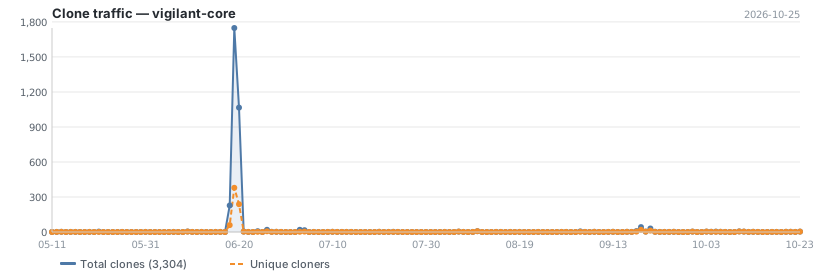
Updated daily. Total and unique cloners over the last 14 days.