


See which delivery companies visited your home, when they arrived, and what happened — all from your Home Assistant dashboard. Frigate Delivery Card turns your camera events into a simple, browsable history with snapshots and video clips, so it is easy to check whether a parcel arrived, identify the courier, or review missed activity.
It works especially well with Frigate+ logo recognition for couriers such as DHL, DPD, GLS, UPS, Amazon, and FedEx. Everything is gathered automatically from Frigate, with no extra snapshot automations, folders, or cleanup jobs to manage.
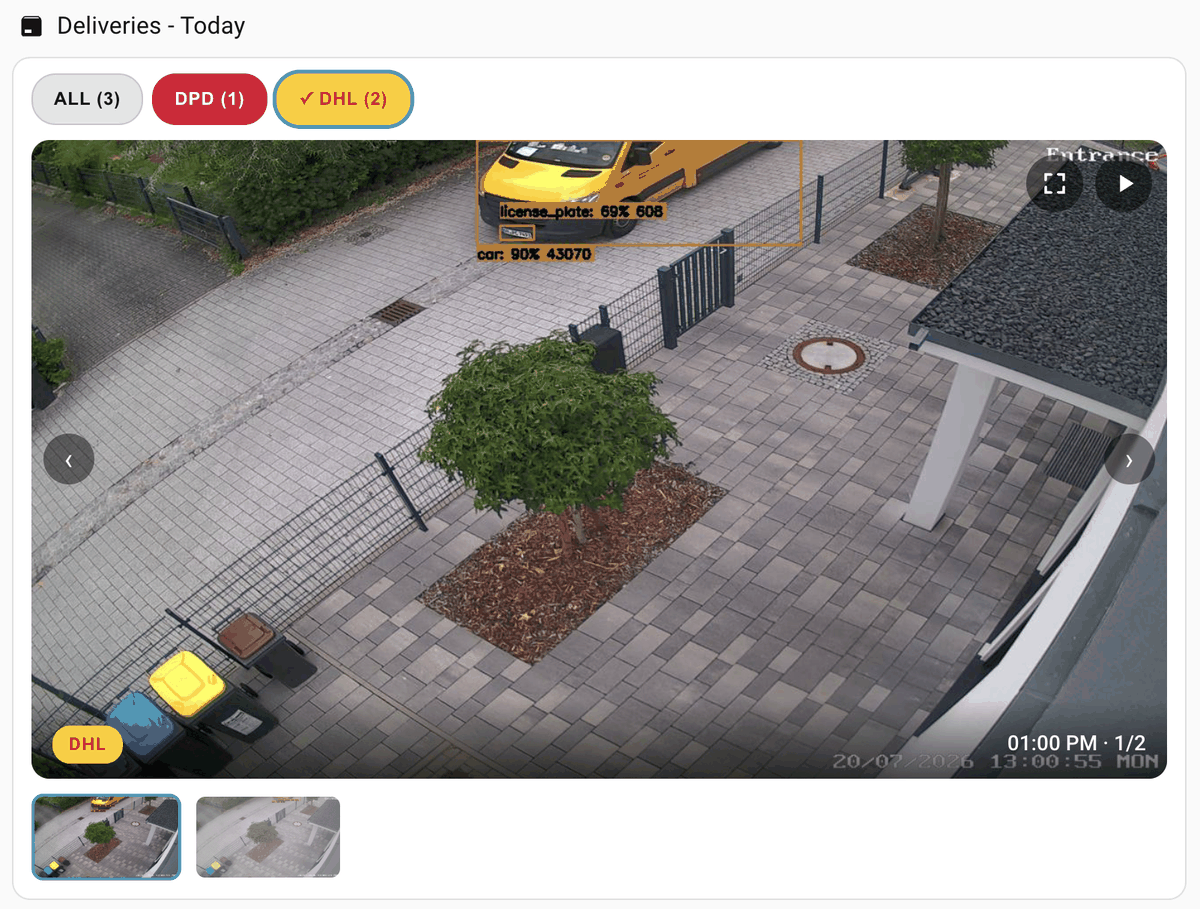
- Sub_label filtering — show only events with specific sub_labels (delivery companies, recognized faces, license plates)
- Two views —
reel(slideshow + thumbnail strip) andtimeline(brand-colored time pills above the slideshow) - Brand-colored badges for every courier the Frigate+ model supports (DHL, DPD, GLS, UPS, Amazon, Hermes, FedEx, USPS, PostNL, PostNord, Royal Mail, An Post, Canada Post, Purolator, NZ Post) on captions, chips and timeline pills; unknown couriers fall back to theme colors
- Sort order — newest first (default) or oldest first
- Inline clip playback — a ▶ button plays the event's full-quality recorded clip right inside the card, streamed progressively so playback starts within seconds. On Safari/iOS (including the Home Assistant companion app) clips play via Frigate's native HLS recordings instead, since iOS can't play progressive video through the HA proxy. The player stays open at clip end (replay via the controls); ✕ returns to the image. Requires
record:enabled in Frigate; hide withclips: false - Fullscreen view — a ⛶ button (or simply tapping the image) opens the still image enlarged, with its own ▶ button to play the clip at full size
- "Other" stops (optional,
unrecognized: true) — also show vehicles that stopped without any courier logo, as a gray OTHER category. Catches unbranded subcontractor vans (looking at you, Amazon DSPs) that no logo model can identify. The minimum stop duration (unrecognized_min_duration, default 30 s) filters out drive-bys - PERSON category (optional,
persons: true) — also show every person event as its own teal PERSON chip: couriers walking to the door, visitors, passers-by. Note that person and vehicle events are separate objects in Frigate, so a delivery shows up as both a courier event and a person event - Thumbnail fallback — events without a saved snapshot (e.g. brief drive-by detections) are still shown using Frigate's always-available event thumbnail
- Visual editor — full UI configuration in the dashboard card editor, no YAML required; options are grouped into collapsible sections (View & playback, Time range, OTHER stops, Advanced)
- English and German — the card and visual editor automatically follow each user's Home Assistant profile language; regional variants and formatting preferences are respected, with English fallback
- Auto-advancing slideshow with configurable interval, pauses on hover
- Filter chips per company/sub_label with live event counts; tapping the active chip clears the filter, the OTHER chip always comes last, and the ALL chip can be hidden with
show_all: false - Time-range based — rolling window (e.g. last 24 h) or today only (since local midnight); retention is handled entirely by your Frigate settings
- Auto-refresh (default every 2 minutes)
- Also filters by
labelsandzones, so it doubles as e.g. a "person at the mailbox" card - Theme-aware styling, no runtime dependencies, ~13 KB compressed
The card talks to the Frigate Home Assistant integration's websocket API (frigate/events/get), which natively supports sub_labels filtering. Snapshots and clips are served through the integration's built-in proxy. Everything stays inside Home Assistant — the browser never talks to the Frigate server directly.
- Frigate with snapshots enabled for the relevant camera
- The Frigate Home Assistant integration (v5+)
- For delivery company recognition: a Frigate+ model that assigns company sub_labels, with the labels listed under
objects: track:in your Frigate config - For clip playback:
record:enabled in Frigate (event/alert retention is enough)
Frigate Delivery Card currently supports English and German. The card and
its graphical editor automatically follow the language selected in each Home
Assistant user profile and update when that language changes. German regional
variants such as de-DE and de-AT use the German translation while retaining
their regional date and time formatting. Unsupported languages fall back safely
to English.
Configuration keys and values remain unchanged and untranslated, so existing YAML continues to work in every language.
- Open HACS in Home Assistant
- Click the three-dot menu → Custom repositories
- Add
https://github.com/thomasgregg/frigate-delivery-cardwith category Dashboard - Search for Frigate Delivery Card and download it
- Reload your browser (HACS registers the resource automatically)
- Download
frigate-delivery-card.jsfrom the latest release - Copy it to
/config/www/frigate-delivery-card.js - Add a dashboard resource: Settings → Dashboards → ⋮ → Resources → Add, URL
/local/frigate-delivery-card.js, type JavaScript module
| Option | Type | Default | Description |
|---|---|---|---|
type |
string | required | custom:frigate-delivery-card |
camera |
string | required* | Frigate camera name (as in your Frigate config) |
cameras |
list | – | Multiple Frigate camera names (*alternative to camera) |
sub_labels |
list | all supported couriers | Sub_labels to show. Defaults to every courier the Frigate+ model supports. Set [] to disable sub_label filtering |
labels |
list | – | Optional Frigate object-label filter that restricts the main event query, e.g. [person]; unlike persons, it does not add a separate category query |
zones |
list | – | Optional zone filter, e.g. [mailbox] |
view |
string | reel |
reel or timeline |
sort |
string | newest |
Event order: newest or oldest first |
clips |
boolean | true |
Show the ▶ clip-playback button (requires Frigate record: enabled) |
show_all |
boolean | true |
Show the ALL filter chip (total count + one-tap filter reset). With false, tap the active chip to clear the filter |
unrecognized |
boolean | false |
Also show vehicle stops without a courier logo as an "unrecognized" category |
unrecognized_min_duration |
number | 30 |
Minimum stop duration in seconds to count as an OTHER stop |
persons |
boolean | false |
Also show all person events as a PERSON category |
period |
string | hours |
Time range: hours (rolling look-back window) or today (since local midnight) |
hours |
number | 24 |
Look-back window in hours (only used when period: hours) |
limit |
number | 100 |
Maximum events to fetch |
slideshow |
number | 6 |
Auto-advance interval in seconds, 0 to disable |
refresh |
number | 120 |
Refetch interval in seconds |
instance_id |
string | frigate |
Frigate instance / client id (only needed for multi-instance setups) |
The card uses automatic height by default, preserving the natural 16:9 snapshot or video area and allowing company filters to wrap. In a Sections dashboard you can resize it down to these supported minimums:
| View | Default size | Minimum size |
|---|---|---|
| Reel | 12 columns × automatic height | 6 columns × 4 rows |
| Timeline | 12 columns × automatic height | 6 columns × 3 rows |
When you choose a fixed row height, the card automatically switches to a compact layout: the media area uses the remaining height, filters and thumbnails scroll horizontally, and controls scale with the card. The minimums prevent combinations where content would be clipped or too small to read or tap. Wider cards still need the listed minimum row count—for example, Reel at 12 × 4—because width and height are resized independently.
Delivery reel — last 24 h:
type: custom:frigate-delivery-card
camera: entrance
hours: 24
Timeline — brand-colored time pills, deliveries today only (resets at local midnight):
type: custom:frigate-delivery-card
camera: entrance
view: timeline
period: today
Only specific couriers:
type: custom:frigate-delivery-card
camera: entrance
sub_labels:
  - dhl
  - dpd
  - ups
period: today
Who was at the mailbox (zone + label instead of sub_label):
type: custom:frigate-delivery-card
camera: entrance
sub_labels: []
labels:
  - person
zones:
  - mailbox
hours: 48
slideshow: 0
Recognized license plates across two cameras:
type: custom:frigate-delivery-card
cameras:
  - entrance
  - carport
sub_labels:
  - Flitzer
  - Volvo
hours: 72The card only shows what Frigate keeps, so a few Frigate settings make a big difference:
objects:
  track:
    - person
    - car
    - package
    - license_plate
    # every delivery logo the Frigate+ model supports:
    - dhl
    - dpd
    - gls
    - ups
    - amazon
    - fedex
    - usps
    - postnl
    - postnord
    - royal_mail
    - an_post
    - canada_post
    - purolator
    - nzpost

cameras:
  your_camera:
    objects:
      filters:
        car:
          min_area: 20000   # see note below
    snapshots:
      enabled: true
      retain:
        default: 14         # see note below

record:
  enabled: true
  alerts:
    post_capture: 15        # see note below
    retain:
      days: 14
  detections:
    post_capture: 15
    retain:
      days: 14
Why these settings:
- Track every courier logo — attribute labels that aren't in
objects: track:are silently discarded, and a weaker false-positive from another courier may win instead. Tracking unused couriers costs nothing. snapshots: retain:controls the card's history — Frigate deletes the event itself when its snapshot retention expires, so withretain: default: 1your card can never look back more than a day, regardless of the card'shourssetting. Match it to your record retention.min_areaon car — Frigate saves the snapshot from the frame with the highest detection confidence. High-resolution detection can score a half-out-of-frame van at the image edge higher than the nicely framed one; amin_areafilter (~2 % of the frame at 1280×720) makes those sliver detections ineligible, so snapshots show the van properly framed. Tune to your camera: the value is in pixels of the detect resolution.post_capture: 15— extends each event clip 15 s past the detection, so the clip actually shows where the package was left, not just the van arriving.- Detect at a decent resolution (e.g. 1280×720) — logo recognition needs pixels; very low detect resolutions miss small or distant logos.
The card pairs nicely with a notification automation on the same events. This one listens to Frigate's MQTT topic and fires exactly once per delivery — when the courier sub_label is newly assigned to the vehicle:
alias: Delivery Driver
description: Announce and notify when a courier logo is detected
mode: single
max_exceeded: silent
triggers:
  - trigger: mqtt
    topic: frigate/events
conditions:
  - condition: time
    after: "07:00:00"
    before: "22:00:00"
  - condition: template
    # Fire only when the courier sub_label is NEWLY assigned. Frigate re-publishes
    # updates for tracked objects continuously - without this transition check, a
    # parked van with a visible logo re-triggers on every update.
    value_template: >
      {% set p = trigger.payload_json %}
      {% set targets = ['dhl', 'dpd', 'gls', 'ups', 'amazon', 'fedex', 'usps',
                        'postnl', 'postnord', 'royal_mail', 'an_post',
                        'canada_post', 'purolator', 'nzpost'] %}
      {% set sl = p.after.sub_label %}
      {% set a = ((sl[0] if sl is not string else sl) | lower | trim) if sl is not none else '' %}
      {% set bsl = p.before.sub_label if p.before is defined and p.before else none %}
      {% set b = ((bsl[0] if bsl is not string else bsl) | lower | trim) if bsl is not none else '' %}
      {{ p.after.camera == 'entrance' and a in targets and b not in targets }}
actions:
  - variables:
      company: >-
        {{ (trigger.payload_json.after.sub_label[0]
            if trigger.payload_json.after.sub_label is not string
            else trigger.payload_json.after.sub_label) | lower | trim }}
  - action: notify.mobile_app_your_phone
    data:
      title: "🚚 {{ company | upper }} has arrived!"
      message: "Frigate detected the {{ company | upper }} logo at the entrance."
      data:
        # Use the EVENT SNAPSHOT (the best detection frame - the same image the
        # card shows), NOT a live camera grab: the logo is often confirmed only
        # after the vehicle has moved on, so a live image may show an empty street.
        image: "/api/frigate/notifications/{{ trigger.payload_json.after.id }}/snapshot.jpg"
  - delay:
      minutes: 5
mode: single plus the final delay acts as a cooldown, so one delivery produces one notification even while the van stays in view.
- "No matching events" — check that events in the window actually carry the sub_label (Frigate UI → Explore → filter by sub label).
- Card shows fewer days than expected — your Frigate
snapshots: retain:is shorter than the card's look-back window (see recommended settings above). - Card doesn't load / unknown card type — hard-refresh the browser (Ctrl+Shift+R) after installation.
- "Unable to find Frigate instance" — set
instance_idto your Frigate client id (only relevant with multiple Frigate instances). - Sub_labels are case-sensitive as stored by Frigate — the card lowercases companies for chips, but the query filter must match what Frigate stores (Frigate+ logo labels are lowercase).
- Clip seeking is limited while loading — clips stream progressively through the HA proxy (no range-request support), so the scrubber covers the buffered portion; full quality is prioritized over instant seeking.
Camera surveillance is regulated differently around the world. In many countries (including Germany and much of the EU), recording public streets, sidewalks, or your neighbor's property is restricted or illegal — video surveillance is generally only permitted on your own private grounds, and areas beyond it may need to be excluded. Before pointing a camera at your entrance, check your local laws, consider masking out public areas (Frigate supports motion masks and zones for this), and be transparent with visitors where required. This project only displays what your Frigate installation records — the legal responsibility for what you record lies with you.
Inspired by the sub_label filtering gap in the excellent Advanced Camera Card (issue #2255). Built on the Frigate HA integration websocket API.