Repository navigation
Whisper WebUI Premium Transcribes a 10 Minute Video in 4 Seconds Full Windows Guide
Full tutorial link > https://www.youtube.com/watch?v=yzNhkC3aQuA
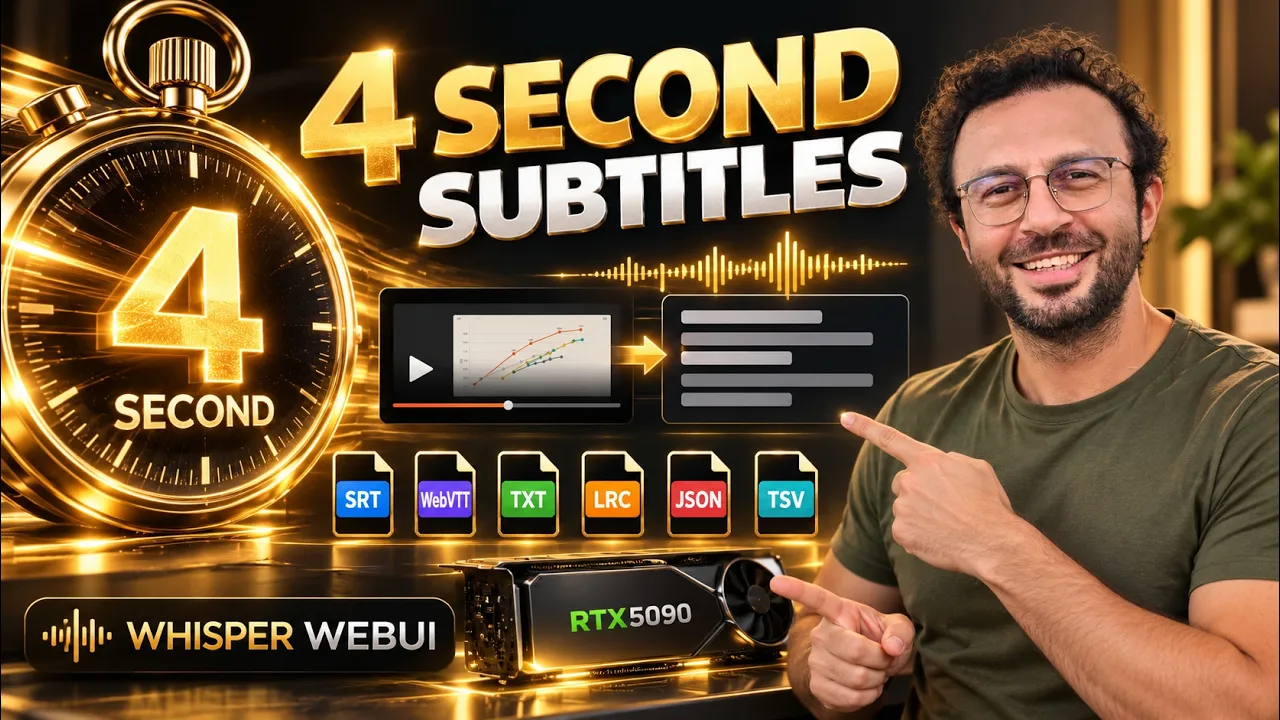











Whisper-WebUI Premium turns video and audio into subtitles, searchable transcripts and timed data on your own Windows PC. See a real 10-minute recording transcribed in 4 seconds, then follow the complete fresh installation and every main workflow. This tutorial covers all 3 engines, researched quality presets, automatic model downloads, 6 export formats, custom vocabulary, folder batches, YouTube sources, microphone recording, speaker labels, subtitle translation and voice/music separation.
Links:
Download Whisper-WebUI Premium and read the full feature guide: [ https://www.patreon.com/SECourses/posts/whisper-webui-to-145395299 ]
Windows Requirements tutorial: [ https://youtu.be/DrhUHnYfwC0 ]
You will learn how to download the latest ZIP, locate it in Chrome, move it to a permanent folder and extract the whole package. Read the Windows Requirements section and follow its linked setup tutorial first if needed. Use an English-character path without spaces, such as G:\whisper_tutorial. Run the Windows installer and app starter by double-clicking their BAT files or selecting them and pressing Enter; never run them as administrator. Keep the start window open while using the local browser interface. We then load a video by upload or full file path, choose a language and output formats, generate the first subtitles, and inspect the saved files and transcript. Use SRT for conventional video subtitles, WebVTT for compatible web players, and TXT for searching or rewriting the transcript. LRC, JSON and TSV keep timed information for other tools. Select several formats in the same run and inspect matching filenames in the outputs folder.
Main topics include multilingual Whisper and optimized models, Canary-Qwen for English speech, Insanely Fast Whisper, GPU-aware presets, INT8 ConvRot, PyTorch 2.13 and CUDA 13 precompiled packages. Save your own preset with vocabulary, reload its settings, reset engine defaults or delete a user preset. Inspect compute precision, beam search, prompts and hotwords, repetition and silence controls, batch size, model offloading, word timestamps and subtitle punctuation. See a long lecture result and stop a separate worker with Cancel Generation. The filter demonstrations cover background music removal, Silero voice detection and diarization for a two-man conversation. Batch Processing scans nested input folders, mirrors their structure in a separate output folder, skips existing results and offers deliberate overwrite. The YouTube tab reads a video link or processes recent videos from a channel. Live Mic previews incoming text; Record Then Generate creates subtitles after recording. Local NLLB translates an English SRT to Spanish while preserving all 10 cue timings and speaker labels; the DeepL API controls provide another route with your own key. BGM Separation saves individual voice and instrumental tracks. SRT, WebVTT, TXT, LRC, JSON and TSV can be selected together and downloaded in one ZIP. Finally, switch themes, open or close the settings panels, and follow the package update route.
Use the chapters to follow the fresh Windows install or jump straight to engines, presets, batch folders, speaker labels, microphone modes, translation and audio separation.
Chapters:
00:00:00 A ten-minute video subtitled in four seconds
00:01:09 See the transcript and choose the right exports
00:01:48 Download the ZIP and check Windows requirements
00:02:43 Move and extract the complete installer package
00:03:32 Fresh Windows installation with the BAT installer
00:04:46 Launch the app and make your first subtitles
00:07:10 Three engines and the long lecture result
00:09:20 Save and reload your own working preset
00:10:34 Useful advanced controls without rebuilding your setup
00:15:24 Music removal, voice detection and speaker labels
00:17:35 Transcribe nested folders and reuse finished outputs
00:19:10 Video links and whole-channel processing
00:20:16 Live preview and record-then-generate microphone modes
00:21:53 Translate subtitles and preserve their timings
00:23:10 Save separate voice and instrumental audio tracks
00:23:59 Updates, cloud support and the complete workflow
The opening result is a 10-minute 56-second recording completed in 4 seconds on an RTX 5090, using the Canary Qwen Best Quality preset, batch size 16 and the optimized Canary INT8 ConvRot model with the model and caches ready. The app reports the elapsed time and result on screen.
The package also supports RunPod, SimplePod and Massed Compute for cloud GPU workflows. This video teaches Windows installation and use; the included platform instructions cover those cloud routes.
Read the linked post for release notes, illustrated feature explanations and current downloads. The app link is also in the pinned comment. For questions, installation support, feature requests and feedback, use the post and video comments.
-
00:00:00 A 10-minute video, turned into subtitles in 4 seconds. Here is the finished transcript
-
00:00:06 in Whisper-WebUI Premium. You get ready-to-use subtitles and text, together, from the same video.
-
00:00:12 These are all 6 export formats from that run. You can download them together in 1 ZIP. So your
-
00:00:18 video subtitles, plain transcript and timed data are ready for different workflows. Our optimized
-
00:00:25 engines make long recordings practical. You also get researched quality presets. The settings are
-
00:00:31 already prepared, and the app downloads the models automatically when you first use them.
-
00:00:36 You can process whole folders, add speaker labels and translate your subtitles inside the same app.
-
00:00:42 Later I will show the long lecture result, and the preset that makes it so quick. Speaker labels help
-
00:00:48 you follow a conversation. Subtitle translation keeps the timing ready for another audience.
-
00:00:56 I will show the complete Windows installation, then every main workflow. You will learn which
-
00:01:01 engine to choose, how to save your settings, and how to turn recordings into useful files.
-
00:01:09 Let me show what those files give you. This subtitle contains the
-
00:01:13 text and its start and end times. You can use it with your video player, editor or video upload.
-
00:01:19 The plain text file gives you the words without subtitle timings. The timed formats keep extra
-
00:01:24 information for other tools. 1 run can produce every selected format, so you can keep both.
-
00:01:32 This result used the Canary quality preset for English speech. The app shows the video length,
-
00:01:40 the elapsed time and the finished text. Now let me show how you install it yourself.
-
00:01:47 The link to download this application will be in the description of the video and the pinned
-
00:01:51 comment. This is the post. You can find the latest installer zip here. Read the Windows
-
00:01:56 Requirements section before you install, and check that your computer has everything listed
-
00:02:01 here. The linked tutorial shows how to install these tools and libraries before you continue.
-
00:02:06 If you have not set those up, follow the requirements tutorial linked here. It shows the
-
00:02:11 complete setup. Once you have followed it, return to this post and continue with our installer.
-
00:02:18 I also recommend you to read the post. It explains the features and useful settings with screenshots.
-
00:02:24 Now I will click the latest zip file and save it in Downloads.
-
00:02:30 When the download finishes, open the downloads button in Chrome. You can choose Show in folder to
-
00:02:36 find the zip. This opens the folder with the file already selected for you. Now I will move this
-
00:02:43 zip into our installation folder. You can cut it here, open your destination folder and paste it.
-
00:02:49 I am using a folder called whisper underscore tutorial on my G drive. Choose a simple folder
-
00:02:54 path with English characters and no spaces. Spaces or non-English characters can cause installation
-
00:03:01 issues. Keep this folder somewhere permanent, because the app and its models will live here.
-
00:03:07 You need to extract the whole zip. I will right-click it and choose Extract All. Check the
-
00:03:11 destination, then click Extract. When it finishes, open the folder containing these installer files.
-
00:03:19 This is the Windows installer, and this is the file that starts the app. You can run a batch file
-
00:03:24 with a double-click, or select it and press Enter. Never run these as administrator.
-
00:03:32 Now I will double-click Windows Install Update. If Windows asks whether to run the downloaded file,
-
00:03:37 check the filename, then click Run. The command window opens and starts the installation. You
-
00:03:44 can see the requirements reminder at the top, then the installer creates its own Python environment.
-
00:03:51 The installer creates a separate environment for this app. This keeps the app packages together.
-
00:03:58 The installer takes care of the package versions for you,
-
00:04:01 instead of asking you to assemble them yourself.
-
00:04:06 The installer gives you PyTorch 2.13 with CUDA 13, and downloads the precompiled libraries for you.
-
00:04:13 FlashAttention and the other acceleration packages are already prepared for this application.
-
00:04:22 It also downloads the models used for speaker labels. You can see the download progress here.
-
00:04:26 Everything stays inside the app folder, and the completion message tells you when the installation
-
00:04:32 is finished. The installation has finished. You can press a key to close this window. Back in
-
00:04:40 the folder, I will select Windows Start App. This is the file you use each time you open the app.
-
00:04:46 I will press Enter to run the start file. You can also double-click it. Keep this command
-
00:04:51 window open while you use the app. It shows the startup steps and the local browser address.
-
00:04:59 When the app is ready, open the local address in Chrome. The browser shows the interface,
-
00:05:05 and the app runs on your own computer. Here are the presets and the main workflow tabs.
-
00:05:11 The File tab is ready for our recording. For your first subtitle job, I recommend
-
00:05:16 the Fast Whisper Best Quality preset. You can select it here. It sets the model and
-
00:05:21 the important parameters together, so you can start with the researched configuration.
-
00:05:26 In the File tab, you can click the upload box or drag a recording onto it. I will
-
00:05:30 choose our video file. The app loads it and shows a preview with its details.
-
00:05:36 You can also load a file by its path. Paste the complete path here and click Load. This is useful
-
00:05:43 for large recordings already on your drive, and you can use a folder for batch work. Here
-
00:05:50 you choose the language. I will keep English for this recording. If you want the app to identify
-
00:05:55 the spoken language, choose Automatic Detection. You can scroll through the available languages
-
00:06:00 in this list. Pick the file types you need for this job. You can choose more than one format.
-
00:06:08 Select the formats you want before generating. I will select all 6 for this example. The timestamp
-
00:06:15 option adds the date and time to filenames, which is useful when you want to keep several runs. Now
-
00:06:22 I will click Generate Subtitle File. The app loads the model automatically and shows progress in Live
-
00:06:28 Transcription. You can watch the text appear while the job runs, then inspect the completed result.
-
00:06:37 The output summary shows where the files were saved.
-
00:06:41 The subtitle files are ready in the outputs folder, with matching names so you can find them.
-
00:06:48 This button opens the outputs folder, and the download button gives you the selected files
-
00:06:53 together. Let me open the folder and show the finished subtitles. Here are the 6 files from
-
00:06:59 our new installation. I will open the subtitle file to inspect the first timing and its text.
-
00:07:05 Each export file uses the same recording name. The Base Model controls choose the engine. Whisper is
-
00:07:12 the multilingual option, with the regular models and our optimized models. You can open this model
-
00:07:18 list to choose the size that suits your work. You can see models from tiny through large,
-
00:07:24 plus turbo and distil options. Our large version 3 and large version 1 optimized models are here too.
-
00:07:31 The app downloads a model the first time you use it. For English recordings, you can choose the
-
00:07:36 Canary-Qwen Best Quality preset. This preset sets the English model and its options together, ready
-
00:07:43 to transcribe your next recording. It loads our optimized Canary model and adjusts the batch size
-
00:07:50 for your GPU memory. Here it has selected batch 16. Here is the batch size chosen for this GPU.
-
00:07:59 Now let me load the full lecture I promised. You can see its length in the preview. I
-
00:08:04 will keep the quality preset and generate the subtitles, just as we did with the shorter video.
-
00:08:13 The lecture is complete, and here is its elapsed time.
-
00:08:18 You can scroll through the transcript from the start to the end. The preset gives you the setup,
-
00:08:25 and the optimized engine does the work. Insanely Fast Whisper is another engine available in this
-
00:08:32 interface. You can select its quality preset here. Its controls load together, so you can try it on
-
00:08:39 the same recording and compare the result. These are the model settings for this engine. I will
-
00:08:45 keep the preset values and generate the same full lecture. Its progress appears in the same panel,
-
00:08:52 and its finished files go into the outputs folder. The progress panel shows the finished
-
00:08:59 transcription. For multilingual speech, I will return to the Whisper preset. Whisper now shows
-
00:09:06 its own model and language options. Translate to English writes English subtitles directly from the
-
00:09:12 spoken language. Subtitle translation is another workflow, which I will show in its own tab.
-
00:09:20 Once you have settings you like, you can save your own preset. I will add our vocabulary, give the
-
00:09:25 preset a clear name here, then click Save. You can keep different setups for different recordings.
-
00:09:31 I will give this preset the name English Tutorial. The vocabulary and the other settings will be
-
00:09:37 saved together. When the name is ready, click Save to add it to the list. The new preset now appears
-
00:09:46 in this list. Your preset now appears in this list. Let me select the built-in preset, then load
-
00:09:54 ours again. Your preset keeps a setup for each task. Pick its name to load those settings again.
-
00:10:01 The saved values return together, so you can reuse the same configuration on your next job.
-
00:10:08 The app remembers your last used preset when it starts. Reset Defaults restores the
-
00:10:13 default settings for the engine. Delete removes a selected user preset. The built-in quality presets
-
00:10:20 stay available as your starting point. The user preset is removed, while the built-in
-
00:10:25 presets remain. I will choose the researched quality preset again for our next examples.
-
00:10:33 Now I will open Advanced Parameters. Each setting has a short explanation. You can keep the quality
-
00:10:40 preset for ordinary work, and change these controls when you need a particular vocabulary,
-
00:10:45 timing or decoding behavior. Beam Size controls how many decoding paths the model considers.
-
00:10:51 The quality preset uses 5. Best Of and Patience are additional search controls.
-
00:10:57 I will keep the researched values while we inspect the rest. Compute Type selects the precision used
-
00:11:03 by the engine. The choices change with your hardware and model. You can inspect them here,
-
00:11:08 then return to the preset value for the model you are using. Initial Prompt helps guide names,
-
00:11:14 terminology and writing style. Hotwords supplies useful vocabulary for Whisper. I will enter
-
00:11:21 the terms from our example here, so you can see how to prepare a specialized recording.
-
00:11:27 Repeat Initial Prompt Every Window applies that guidance to each window. Prefix supplies a
-
00:11:32 starting text prefix. You can keep these with your custom preset, so the vocabulary setup is ready
-
00:11:38 when you need it. Condition On Previous Text carries earlier words forward as context. The
-
00:11:44 app also adjusts this for long recordings and the selected model. The explanation
-
00:11:49 here tells you how the current preset handles it. Temperature controls sampling, and Prompt
-
00:11:55 Reset On Temperature controls when the prompt resets. Log Probability Threshold and No Speech
-
00:12:00 Threshold help decide which segments are kept. These are already tuned in the quality preset.
-
00:12:06 Compression Ratio Threshold checks repetitive output. Repetition Penalty and No Repeat N-gram
-
00:12:11 Size are additional repetition controls. Length Penalty influences the length of generated text.
-
00:12:17 The app exposes these together for detailed tuning. Suppress Blank and Suppress Tokens control
-
00:12:23 which tokens the decoder can produce. Max New Tokens sets a generation limit. Chunk Length sets
-
00:12:29 the processing window for engines that use it. The visible controls follow your selected engine.
-
00:12:35 Word Timestamps adds individual word timing. Normalize Word Timestamp Output groups that
-
00:12:41 into readable subtitle cues. You can also keep word-level timing for highlighted subtitles,
-
00:12:47 while the plain transcript remains available alongside them. Now I will generate this recording
-
00:12:53 with word timing enabled. The app creates the timed subtitles and the plain transcript together.
-
00:13:00 Here are the separate exports. I will open the subtitle file so you can inspect its word timings.
-
00:13:07 The text export keeps the complete words without those timestamps. Each word has its own timing
-
00:13:15 in this subtitle. The plain transcript keeps the sentences easy to read. Prepend Punctuations
-
00:13:21 and Append Punctuations control how punctuation attaches to words. Max Initial Timestamp controls
-
00:13:26 the first timing boundary. You can keep the preset values for readable captions and adjust them for a
-
00:13:31 specific export. Hallucination Silence Threshold helps handle quiet passages. Language Detection
-
00:13:38 Threshold and Language Detection Segments control automatic language selection. You can find those
-
00:13:43 here when preparing recordings with different languages or long silent intervals. Use Batched
-
00:13:49 Inference switches to the batched Whisper path. Batch Size controls how many chunks are processed
-
00:13:55 together. These are separate from the default path, so you can save a batch configuration
-
00:14:01 for a particular workflow. Offload Models to RAM When Idle keeps the loaded model ready in system
-
00:14:08 memory between jobs. Your GPU memory becomes available for other work. The next transcription
-
00:14:14 brings the model back when it needs it. Canary also has generation options in its own advanced
-
00:14:21 view. Selecting Canary changes the available controls. The app shows the generation options
-
00:14:27 that belong to this engine. The JSON box accepts supported generation parameters, and the thinking
-
00:14:34 control belongs to that engine. You can use the ready preset as the starting configuration.
-
00:14:40 Start As Sub Process gives the Cancel Generation button direct control over a running worker.
-
00:14:46 You can enable it for jobs you may want to stop. The regular preset is convenient for repeated
-
00:14:52 transcription in the same session. I will load our recording and enable Start As Sub Process.
-
00:14:58 The app will launch a separate worker for this job. This option keeps cancellation connected to
-
00:15:05 that worker. Now I can click Cancel Generation. I will confirm the request in the dialog. The status
-
00:15:13 tells us that the worker has been terminated. The cancelled worker is closed. We can return
-
00:15:19 to our quality preset and continue with another recording. The 3 filter sections are right below
-
00:15:26 Advanced Parameters. I will open Background Music Remover Filter first. It separates the voice from
-
00:15:32 music before transcription, which is useful for recordings with a soundtrack. You can choose the
-
00:15:37 separation model and the device here. Segment Size controls the processing chunks. Save Separated
-
00:15:43 Files to Output keeps the resulting tracks, and offloading releases the helper model after the
-
00:15:49 job finishes. I will load our recording with music and click Generate. The filter separates the audio
-
00:15:55 first, then the transcription model creates the subtitle. We keep the separated tracks because
-
00:16:02 that option is enabled. The finished summary shows the subtitles from the filtered recording.
-
00:16:07 The retained audio tracks are available in the outputs folder. Now the Voice Detection Filter.
-
00:16:13 Silero detects speech and skips silent regions. The Speech Threshold controls its speech decision,
-
00:16:19 and the minimum speech duration controls how short a speech segment can be. Minimum Silence Duration
-
00:16:26 controls the gap used to separate speech. Speech Padding keeps some audio around its boundaries.
-
00:16:33 Maximum Speech Duration bounds a speech segment. I will use the preset values for this recording.
-
00:16:40 Diarization adds a label for each speaker. I will enable it for our 2-man interview. The
-
00:16:46 installer has already downloaded its models, so this workflow is ready without entering a Hugging
-
00:16:52 Face token. The speaker model and its device are selected here. Keep these ready before generating
-
00:16:59 your conversation subtitles. Now I will generate the subtitles. The app transcribes the interview
-
00:17:06 and assigns its speaker labels together. The result appears in Live Transcription. The
-
00:17:12 finished lines include speaker labels next to the words. Each label stays beside its subtitle text.
-
00:17:20 I will open the saved file so you can inspect the turns through the conversation. You can follow
-
00:17:27 the turns through the conversation, and the same labels appear in the subtitle files you download.
-
00:17:35 For a whole collection, enable Batch Processing in the File tab.
-
00:17:40 I will paste our input folder here. Include Subdirectory Files
-
00:17:46 lets the app find recordings in nested folders, so you can keep your existing organization.
-
00:17:53 You can choose an output folder separately. I will use this one for our subtitles.
-
00:18:01 The app mirrors the input folders there, so each video has its outputs in the matching place.
-
00:18:08 Now I will generate the batch. Watch each file appear in Live Transcription. Live Transcription
-
00:18:15 shows progress as each file is processed. When the job finishes, the summary lists the completed
-
00:18:24 work, and we can open the folders to inspect the files. The output folder keeps the same subfolder
-
00:18:30 names as the inputs, so each recording is easy to locate. Here are the matching subfolders
-
00:18:37 and the exported files. We already have subtitles for both recordings. I will run the same folder
-
00:18:44 again to show the skip behavior. If you run the folder again, finished files are skipped.
-
00:18:52 Overwrite runs those files again and replaces their saved results. Keep it off to skip them.
-
00:18:58 Overwrite Existing Files lets you deliberately recreate them when you want a fresh set.
-
00:19:06 Turn it back off to keep the completed files. In the YouTube tab, you can paste a video link. The
-
00:19:13 app loads the title, thumbnail and description. I will use one of our own videos, so you can see
-
00:19:19 exactly which recording is selected. The model, language and format controls work as before.
-
00:19:27 Check the title before you start this job. You can keep the quality preset and click Generate.
-
00:19:34 The app downloads the audio, transcribes it and gives you the files in the same workflow.
-
00:19:40 Here is the saved subtitle from our video. Its filename keeps the full title for easy
-
00:19:46 identification. For a channel, enable Mass Transcribe Latest Channel Videos.
-
00:19:53 You can enter the channel link and choose how many recent videos to scan.
-
00:19:59 The channel preview shows the source for this batch. The app processes those recordings one
-
00:20:05 after another, with progress in this panel. The channel summary shows the completed video,
-
00:20:11 and its subtitle file is ready in the outputs folder. The Mic tab has 2 workflows. Live Mic
-
00:20:18 shows a preview while you speak. Record Then Generate keeps the recording first, then
-
00:20:24 creates the subtitles. You can choose the mode that fits your recording task. For live preview,
-
00:20:30 choose the live recording mode and start the microphone. I will let a short voice example run.
-
00:20:39 Hello Furkan, I like having subtitles with my recordings because they make the information
-
00:20:44 easier to use. A transcript also helps me search for a topic and share the useful
-
00:20:49 parts with other people. You can see the text update in this panel as the audio comes in.
-
00:20:56 When you stop, the app transcribes the complete recording with the selected model.
-
00:21:04 The output files appear here. You can save the recording and its subtitles,
-
00:21:08 and keep the same preset for your next session.
-
00:21:12 With Record Then Generate, you first record the microphone and stop it.
-
00:21:19 That is a useful workflow. I can keep the original subtitles for editing, translate another copy for
-
00:21:26 a different audience, and use the plain text when I want to write a short lesson summary.
-
00:21:34 Then you click Generate Subtitle File. The recorded waveform is ready for you to inspect.
-
00:21:43 This gives you a simple recorded clip to inspect before asking the model to create its subtitles.
-
00:21:52 The Translation tab works with subtitle files you already have. I will upload our subtitle,
-
00:21:59 then choose NLLB. It translates the text inside the cues, so the subtitle timing stays with the
-
00:22:05 recording. You can choose the translation model, source language and target language here. I will
-
00:22:10 translate our English subtitle into Spanish. The language list gives you many choices for preparing
-
00:22:17 your recordings for another audience. Keep Max Length Per Line at the default shown here.
-
00:22:23 The timestamp option creates a separate named result. Now I will click Translate Subtitle File
-
00:22:30 and let the app download the translation model if needed. Here is the translated
-
00:22:36 subtitle. Its timing is still in place, and the speaker labels are preserved. You can download
-
00:22:41 the result and use it with the same video, alongside the original-language subtitles.
-
00:22:47 The Spanish text is different. Each cue keeps the original start and end time and its speaker label.
-
00:22:56 The DeepL API tab gives you another translation route with your own key. You choose the source
-
00:23:02 and target languages, and the account type. NLLB gives us the complete local translation workflow
-
00:23:09 we just used. The BGM Separation tab gives you the separated audio directly. I will load our voice
-
00:23:16 recording with music. You can choose the model and device here, then save the separated files to the
-
00:23:24 output folder. Segment Size controls the chunks used for separation. Now I will click Separate
-
00:23:31 Background Music. The app processes the recording and provides a voice track and an instrumental
-
00:23:37 track in these 2 players. Both tracks are saved in the outputs folder. The folder keeps the voice
-
00:23:44 and instrumental as separate files. You can use the voice track for transcription or editing,
-
00:23:51 and keep the instrumental separately. That gives you another useful output from the same recording.
-
00:23:59 You can switch between the light and dark themes with this button. Open or Close All
-
00:24:03 Sections controls the panels together. These let you make the interface comfortable while keeping
-
00:24:09 your saved presets ready. Closing the sections gives you a compact overview. Open them together
-
00:24:17 when you want to inspect the available settings. To update, download the latest zip from this post,
-
00:24:24 extract its files into your app folder and run Windows Install Update again. Keep the
-
00:24:30 post handy for release notes, feature explanations and support information. The package also supports
-
00:24:38 RunPod, SimplePod and Massed Compute. You can use those cloud GPUs if you want to scale your
-
00:24:42 work or run without a powerful local GPU. The included instruction files explain each platform.
-
00:24:51 You now have the complete route, from the zip to your finished subtitles. Choose a preset,
-
00:24:57 load your recording and generate. Keep the preset for your next recording. The other tabs
-
00:25:03 give you the translation and audio workflows in the same interface. Then use the folder,
-
00:25:10 translation or separation workflows when your project needs them. The download link
-
00:25:15 is in the description of the video and the pinned comment. Read the post for the full feature guide.
-
00:25:21 Start with the quality preset, and turn your next recording into useful subtitles and text.